

A password manager is an app that creates, stores, and fills in your passwords, so you only need to remember one strong master password. It makes it practical to use a different password for every account, which limits the damage if one of them is stolen.
That matters because reuse is still common. In Bitwarden's 2025 survey, as reported by SQ Magazine, 78% of respondents said they reuse passwords. If one site is breached, criminals can try the same login on your email, bank, and shopping accounts.
Security agencies recommend these tools for this reason. The US Cybersecurity and Infrastructure Security Agency (CISA) advises using a password manager because most people can't remember long, random, unique passwords for every account. The UK's National Cyber Security Centre has also published guidance recommending them.
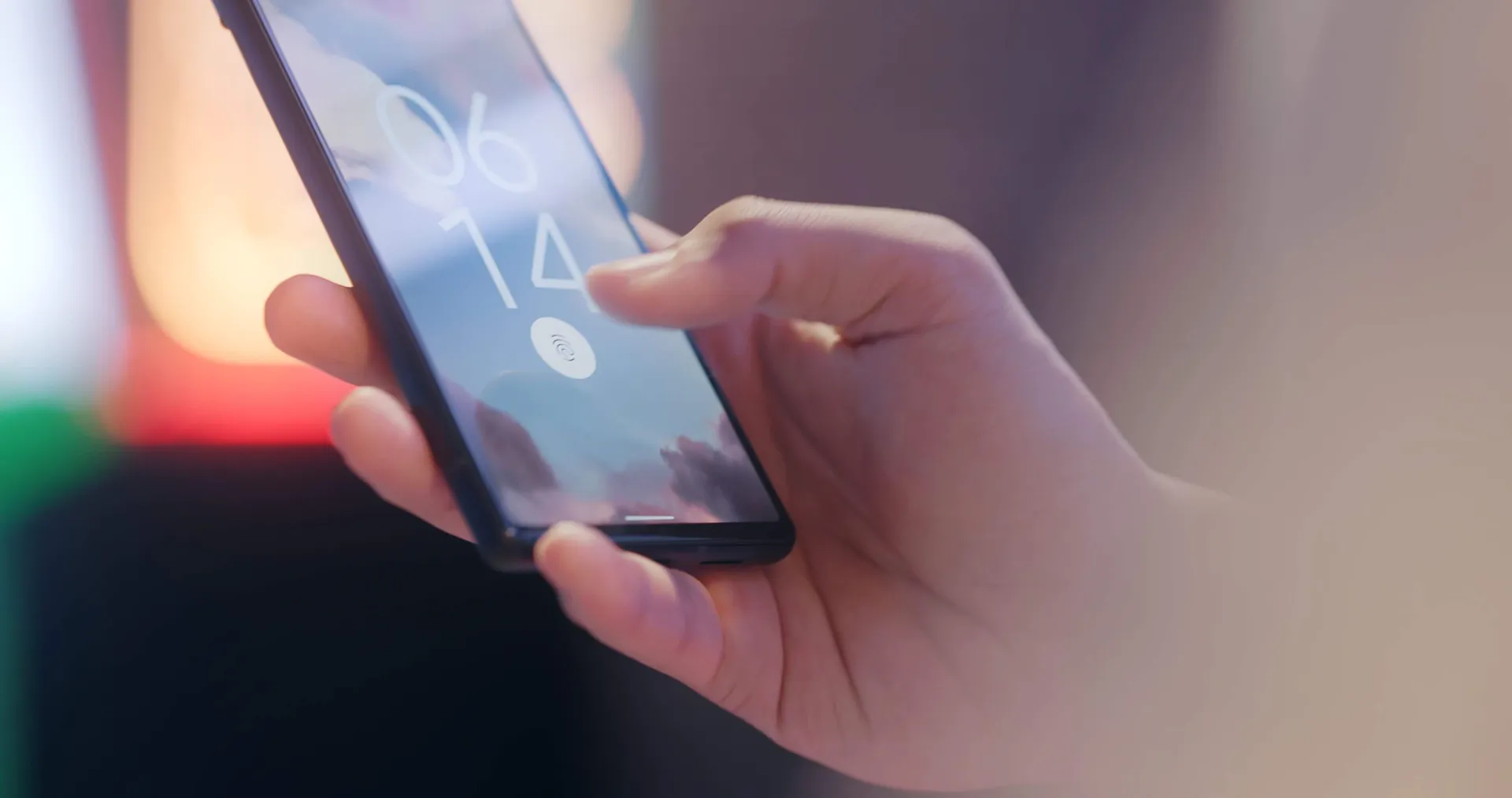
How password managers work
Think of a password manager as a locked digital safe. Here's what usually happens:
You create a master password. This unlocks your vault, so make it long and unique. Some apps also let you unlock with a fingerprint or face scan on your device.
The app encrypts your data. Passwords are scrambled so that they can't be read without the right key.
Your vault syncs. An encrypted copy can be available on your phone, laptop, and tablet.
The app creates new passwords. When you sign up for a service, it can generate a long, random password and save it.
It fills in your login. The app can recognize a saved website and enter your details for you.
What is zero-knowledge encryption?
Many dedicated password managers use a zero-knowledge design. Bitwarden's security documentation gives one example: data is encrypted on your device, and the company doesn't store your master password or have access to your encryption keys.
This protects your data, but it comes with a trade-off. If you forget your master password, the company may not be able to recover your vault unless you've set up a recovery option.
Why you need one
A unique password for every account: one stolen password is less likely to open your other accounts.
Stronger passwords: the app can create long, random passwords that you never have to remember.
Faster logins: you spend less time typing passwords or resetting forgotten ones.
Some protection against fake sites: autofill usually matches the saved web address, so a missing suggestion can be a useful warning sign. Still check the address yourself.
Safer sharing: many apps let families and teams share logins without sending them by text or email.
Breach alerts: some services can warn you about weak, reused, or exposed passwords.
Are password managers safe?
A good password manager is generally safer than reusing passwords, but no service is risk-free.
The LastPass case shows the risk. In a 2022 breach, attackers stole personal information and encrypted password vaults, and the UK's data regulator later fined the company £1.2 million. The regulator said it found no evidence that the attacker decrypted the vaults, but the company had warned that their safety depended on the strength of each customer's master password. Later reports linked cryptocurrency thefts to cracked vaults, particularly those protected by weaker master passwords.
There are three main lessons:
Your master password matters most. Make it long, unique, and hard to guess.
A vault is a valuable target. Turn on multifactor authentication for the account.
Your device matters too. A password manager can't fully protect you if malware has compromised your device, so keep your software updated.
Built-in or dedicated: which should you use?
A built-in manager is far better than reusing passwords, and it may be all you need. A dedicated app offers more flexibility.
Factor | Built-in (Google, Apple, or browser) | Dedicated app |
|---|---|---|
Cost | Usually included | Free or paid plans |
Setup | Very easy | Takes a little longer |
Works across devices | Best within one ecosystem | Usually works across many devices and browsers |
Sharing | Varies | Often stronger for families and teams |
Best for | Individuals who mostly use one platform | Mixed devices, families, and businesses |
With a built-in manager, the security of your main account is critical. Protect your Google, Apple, or Microsoft account with a strong password and multifactor authentication or a passkey.

How to choose a password manager
Look for:
A good reputation, which the NCSC highlights as a key consideration
Clear information about its encryption and independent security audits
Support for all your devices and browsers
Multifactor authentication and passkey support
A straightforward way to export your data
A clear account recovery process
How to set one up
Choose your manager and create a master password. A long passphrase of several random words is easier to remember than a short, complicated password.
Turn on multifactor authentication. Do this before you add anything important.
Save your recovery details. Keep any recovery codes somewhere safe and separate from your devices.
Import your saved passwords. Then delete any old copies, including unprotected files and notes.
Replace your riskiest passwords first. Start with email, banking, and social media, then work through the rest over time.
Use passkeys where you can. Many password managers can also store them.
You don't have to fix everything today. Start with your main email account, because it can often be used to reset your other passwords.
Sources
Bitwarden. Security Whitepaper.
Bitwarden. How End-to-End Encryption Paves the Way for Zero Knowledge.
Bitwarden. NCSC guidance on passwords.
BleepingComputer. UK fines LastPass over 2022 data breach. December 2025.
Captain Compliance. The LastPass ICO £1.2M Privacy Fine.
CISA. Use Strong Passwords.
ITPro. The NCSC wants you to start using password managers and passkeys.
SQ Magazine. Password Statistics 2026, citing Bitwarden. May 2026.